MyScheduler
MyScheduler is a schedule planning tool which allows you to create and compare multiple class schedules for a given semester based on your course preferences as well as other commitments such as your work, sport and/or family schedules.
MyScheduler will generate every possible, non-conflicting schedule for you so you can maximize your course selections and remain on track for a timely graduation. You can view up to four schedules side-by-side and compare options, save favorite schedules, and adjust preferences on the fly. You can hold your class schedule in your shopping cart and wait to enroll when your enrollment appointment begins.
Notable features include the abilities to: favorite specific schedules for later, email a potential schedule to an advisor, add break times, import your courses from MyPlanner, schedule validation, and more. The schedule validation feature allows you to check your potential schedule for common issues, like pre/corequisites or holds.
New! In-App Registration Workflow
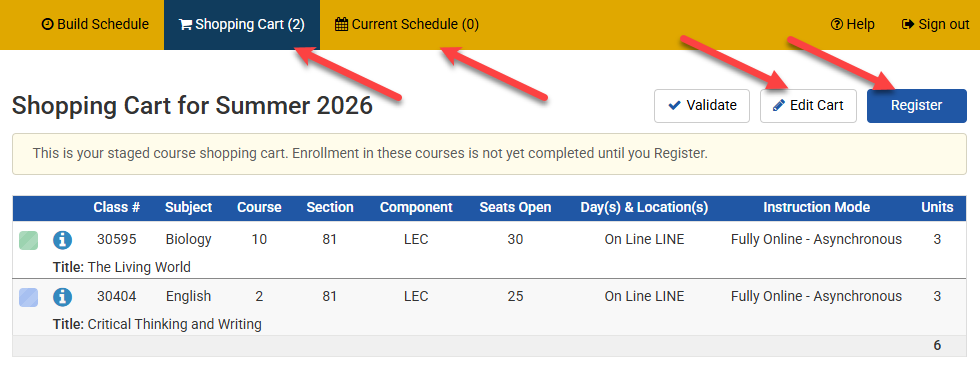
Starting Summer 2026, students can complete the entire registration process in MyScheduler! This means that you can enroll in that perfect schedule you generated without having to send your shopping cart back to MySJSU. Now when selecting the "Send to Shopping Cart" button, the courses are kept in MyScheduler and enrollment can be completed in next step of the registration process.
New tabs at the top of the page show the Shopping Cart and Current Schedule, and within the Shopping Cart tab, there are new Edit Cart and Register buttons.
Accessing MyScheduler
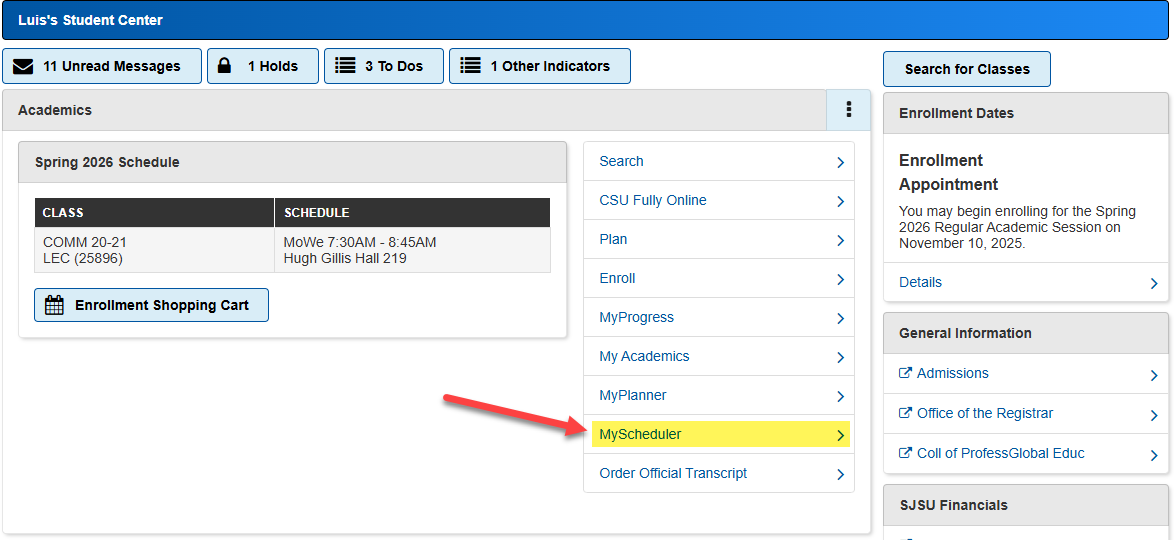
Students can access MyScheduler directly, or from the Student Center in MySJSU (look for MyScheduler in the Academics section).
MyScheduler Quick-start Video
General MyScheduler Usage
Frequently Asked Questions
Should I build my courses around my breaks, or the other way around?
Start your planning wide and narrow in steps to avoid completely blocking conflicts that lead to no potential schedules. The courses you need or want to take should always drive your schedule. We recommend refining your course choices before adding in your break times.
Why do I get hundreds of possible schedules?
MyScheduler generates every possible combination of schedules. To narrow down your results, try the following options:
- Course Status - select open classes only;
- Instruction Mode - select option for in-person or online;
- View schedules and start locking desired sections of a selected course;
- Add break times (start with necessary breaks then move to desired breaks); and,
- Use the gear icon for each course to include or exclude certain section.
Remember to click Generate Schedules again after changing filters and options.
Why do I get no results when I click Generate Schedules?
Based on the available sections and your selected filters, there are no schedule combinations possible. MyScheduler may tell you that there's a conflict with a particular course or break, so check the errors on the page as well.
Use the filters to expand your results. Try the following options:
- Course Status - select open and full w/waitlist classes;
- Instruction Mode - select option for in-person and online classes;
- Use course Options and check all sections;
- Lock desired course sections;
- Remove break times; and,
- Look for conflicting courses or locked sections.
Remember to click Generate Schedules again after changing filters and options.
Once I send my courses to the shopping cart, is my enrollment guaranteed?
No, MyScheduler generates all possible schedules based on the courses you select but does reserve space in those courses. Only when completing the entire enrollment process with the Register button will you know if you're fully enrolled in your schedule.
Can I send multiple schedules to the enrollment shopping cart?
No, only one schedule at a time can be sent to the enrollment shopping cart. If you want a different schedule, you must delete the courses listed in your shopping cart first, or allow MyScheduler to do it for you when you send a new schedule to the cart.
When can I register using MyScheduler?
Your ability to register using MyScheduler relies on you being active for the enrollment term and having a valid enrollment appointment, the same way that it works in MySJSU.
If you encounter errors when attempting to enroll, read each error carefully and determine if it's something you can correct on your own. Certain errors require you to wait until specific conditions are met and some errors you're able to resolve yourself.
Can I use MyScheduler if I am already enrolled in courses?
Yes, your current course schedule will be displayed in MyScheduler. You can add additional courses and MyScheduler will find sections that fit into your current schedule.
Make sure to re-launch MyScheduler if you've made any changes to your schedule in MySJSU.
How do I switch course sections in MyScheduler?
From the Current Schedule tab in MyScheduler, you can Edit/Drop or Swap your enrolled courses. With the Swap option, you can drop one section and enroll in another within the same transaction.
Swaps can be done either by 5-digit class number, by searching for the subject and catalog number, or by using an existing section in your shopping cart.
When can I use the validation feature?
Validation can be run at any time and you don't need to wait for your enrollment appointment to open. Validation is intended to be used prior to enrollment to allow you to get a heads up on any issues that may prevent enrollment.
Does validating my potential schedule guarantee I'll be able to enroll in those courses?
No. While validation will catch common issues before enrollment, things can change between validation and actual enrollment that affect your ability to successfully enroll in courses.
What does validating my schedule check for?
The validation feature allows you to check for issues before enrollment, including:
- Any enrollment holds
- Class permission number required
- Pre- or Co-requisites not met
- Term unit maximum would be exceeded
- Class repeats (2nd or 3rd+ attempts)
- Course outside of career (e.g. undergraduate student trying to add a graduate level class)
Does validating my potential schedule enroll me courses?
No, the validation only checks for potential enrollment issues and does not actually process actual enrollment in courses. You will still need to sent your potential schedule to your shopping cart and proceed with enrollment when your enrollment appointment is open.
